


Create a Report with Grouping Records
When creating a new report with grouping records, be sure you choose correct sorting in your dataset, for example, by using ORDER BY in the report's SQL text.
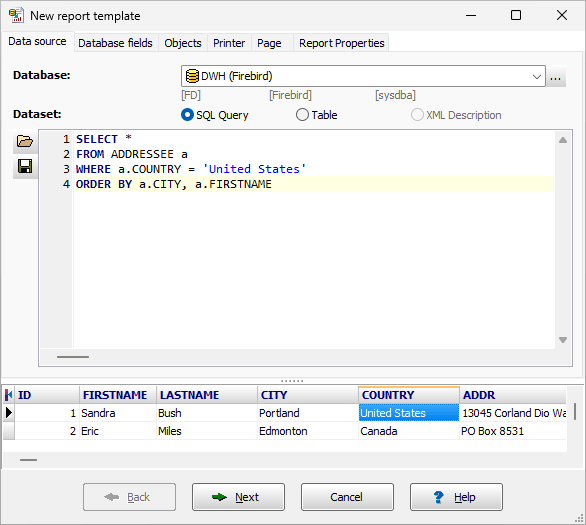
At the last step of the wizard, choose Grouping Records page and specify grouping expression(s). Grouping expression is calculated each time the new record of data source passed. When the result of the expression is changed, the current group ends and a new one begins. When the group starts, Group Header band is outputted (if visible). When the group ends, Group Footer band is outputted (if visible).
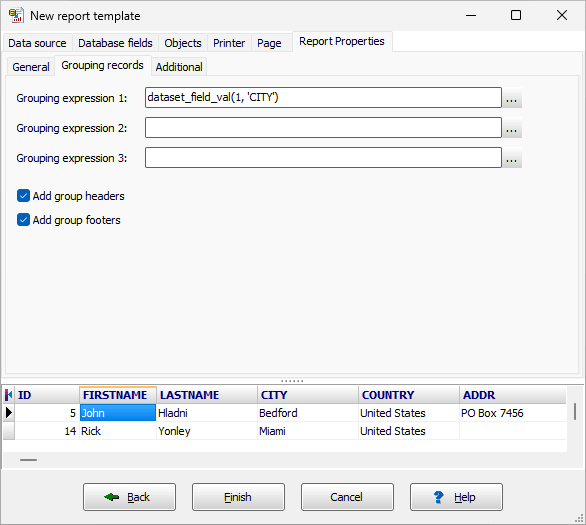
Click OK to finish with the new report and switch to Report Builder page.
Hint: To add grouping to an existing report, which has no groups yet, choose Report Builder page. In the report tree, select Report to see the report properties. Specify grouping expression (call Expression editor using button '...', select needed field from the field list and click Add, and then click OK). Check grouping bands in report tree to make them visible.
Place desired objects on the grouping bands.
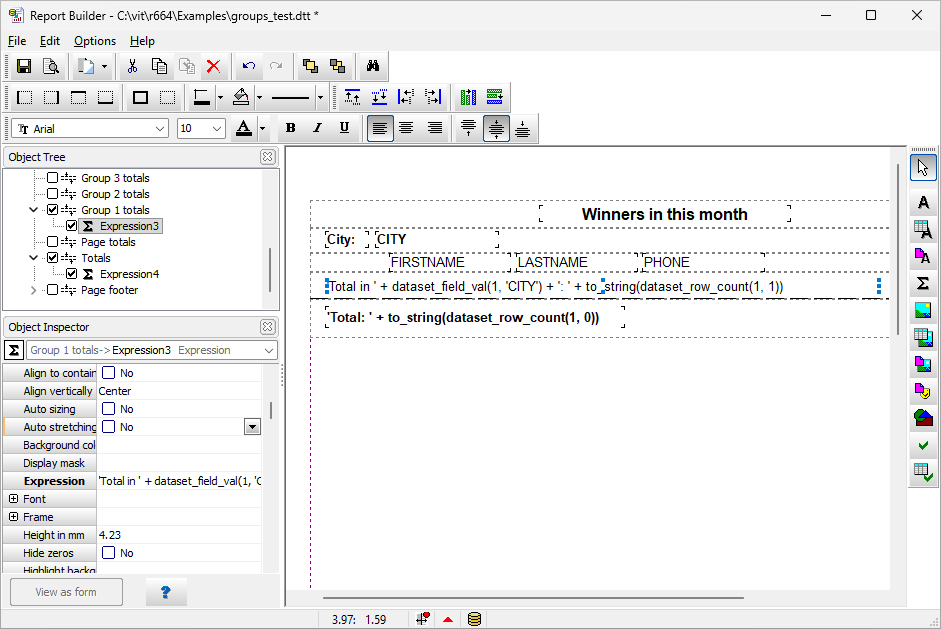
Finally, check how the report looks in preview:
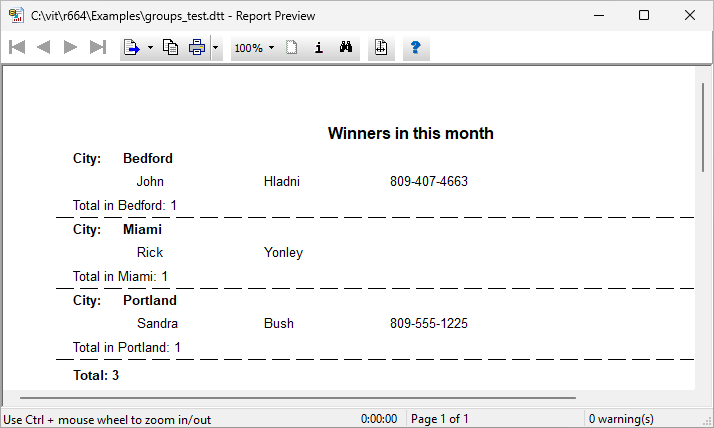
There are several examples of report templates with grouping in the application package, you can find them in Examples folder.
See also